Ideogram 4.6

Ideogram 4.6 is Ideogram's image generation and editing model, with native output up to 4096x4096. It generates images from text at any size on a 32-pixel grid, with an optional transparent background, and edits a source image using up to four more images as references. It keeps characters recognizable across scenes and matches exact colors more reliably than Ideogram 4.5, which suits product shots, brand recoloring, and campaign variations.
Editing with reference images
How to edit an image with Ideogram 4.6 and up to four reference images: numbering the inputs, combining references, taking one attribute from each and choosing the output size.
Introduction
Ideogram 4.6 edits images with the same model it uses to generate them. Pass images in inputs.referenceImages and the first one becomes the image being edited. Any others, up to four more, are references the instruction can pull from, such as a product to place or a fabric to upholster with.

Place the electric bike from image 2 leaning against the empty brick wall on the left of image 1, parked parallel to the wall at a realistic scale for the sidewalk, with its shadow falling across the pavement in the same direction as the other shadows. Keep the street, the shop window, the light and the camera of image 1 unchanged.
- Image 1
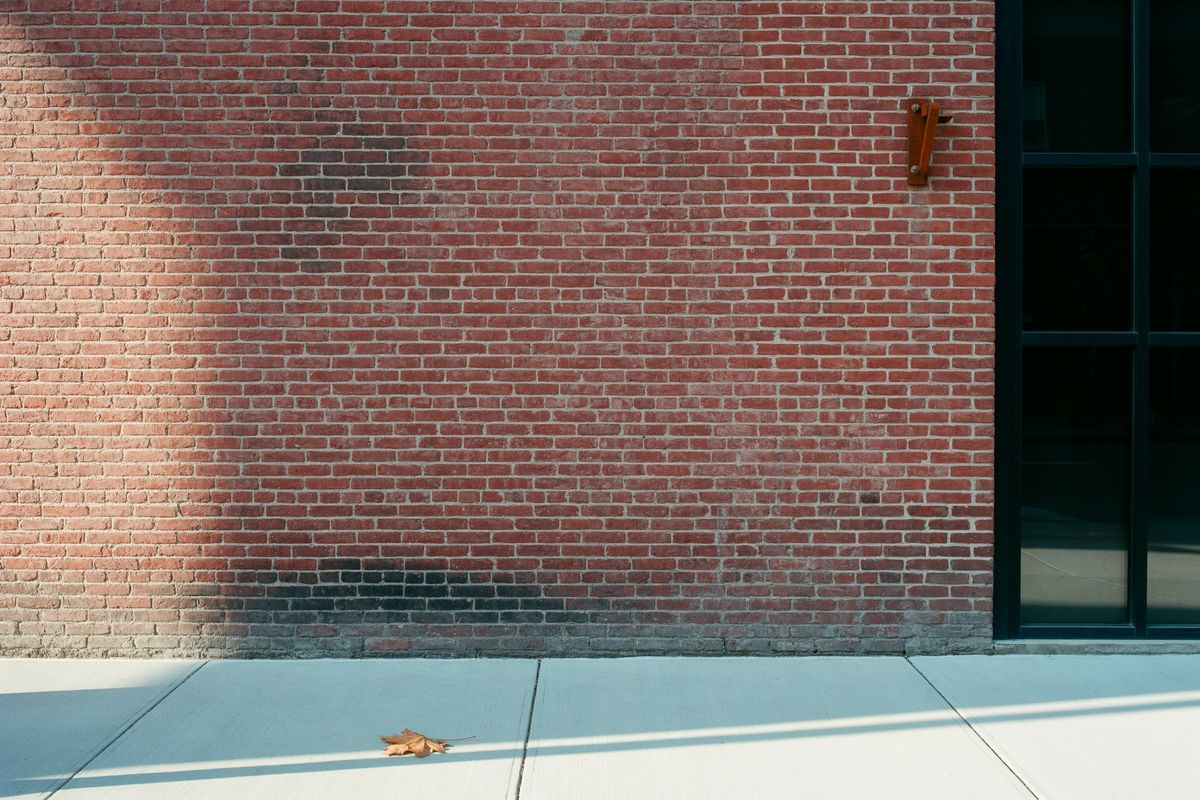
Photorealistic street photograph of a quiet city sidewalk in the morning: a weathered red brick wall with a tall black-framed shop window on the right, a strip of clean concrete pavement in front of it, and an empty stretch of wall on the left half of the frame with nothing leaning against it. Soft low sunlight from the left casting long shadows across the pavement, shot straight-on at waist height with a 35mm lens.
- Image 2
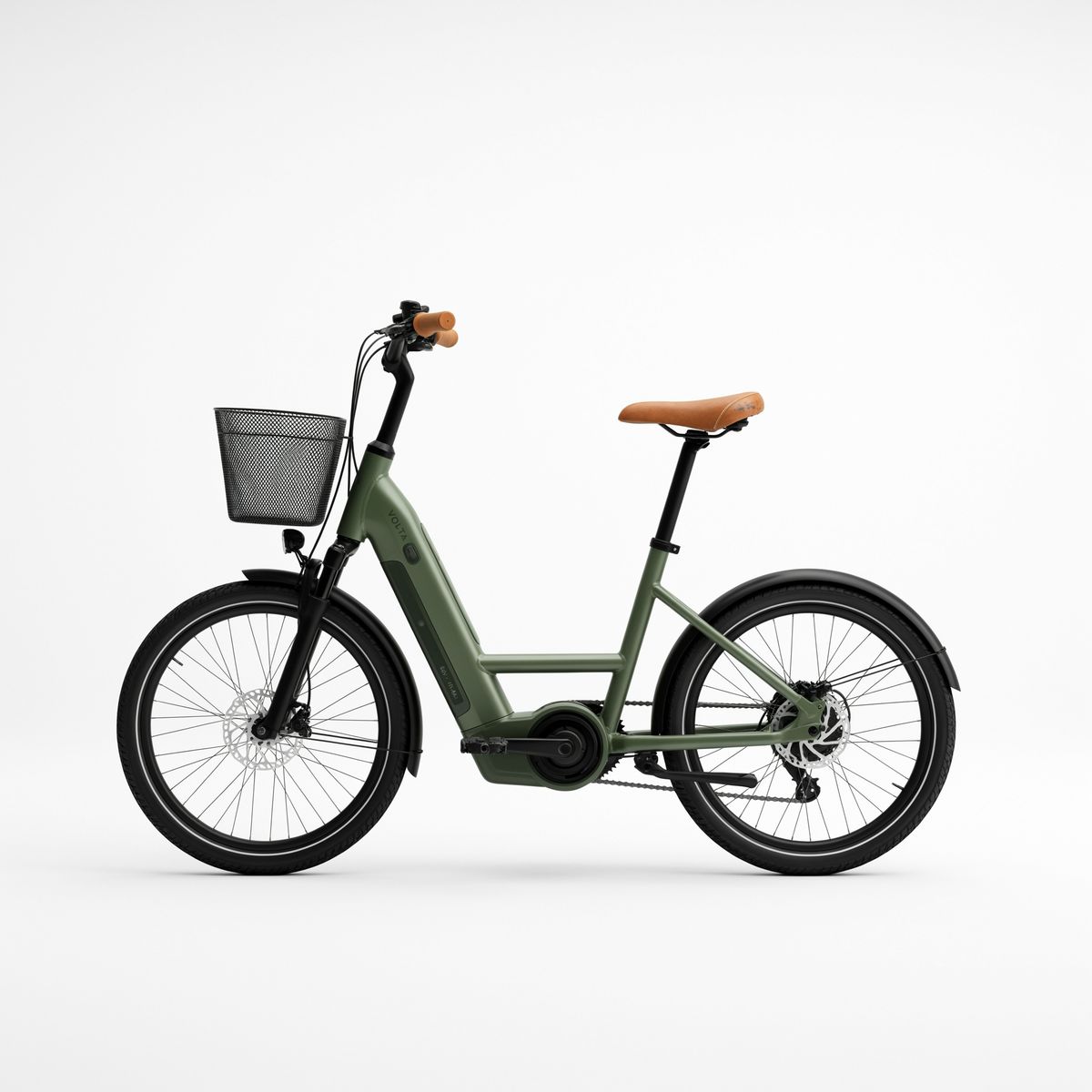
E-commerce packshot of a city electric bike in matte olive green with a step-through frame, a tan leather saddle and matching grips, a black front basket, fenders and an integrated battery in the down tube, side view on a plain white background, soft studio light, a faint shadow below.


That is a packshot placed into a lifestyle scene in one call.
This guide covers how the images are numbered, combining several references, taking a different attribute from each one and choosing the output size.
How the images are numbered
The order of inputs.referenceImages is the numbering the prompt uses. The first entry is image 1, the one being edited, and the rest are image 2 to image 5.
import { createClient } from '@runware/sdk'

const client = await createClient({ apiKey: process.env.RUNWARE_API_KEY })
await client.connect()

const [result] = await client.run({
  model: 'ideogram:4.6@0',
  positivePrompt: 'Place the electric bike from image 2 leaning against the empty brick wall on the left of image 1, parked parallel to the wall at a realistic scale for the sidewalk, with its shadow falling across the pavement in the same direction as the other shadows. Keep the street, the shop window, the light and the camera of image 1 unchanged.',
  inputs: {
    referenceImages: [
      'https://assets.runware.ai/guides/ideogram-4-6/reference-editing/source-street.jpg',
      'https://assets.runware.ai/guides/ideogram-4-6/reference-editing/reference-ebike.jpg'
    ]
  },
  width: 3072,
  height: 2048
})
import asyncio
import os
from runware import Runware
async def main():
async with Runware(api_key=os.environ["RUNWARE_API_KEY"]) as client:
results = await client.run({
"model": "ideogram:4.6@0",
"positivePrompt": "Place the electric bike from image 2 leaning against the empty brick wall on the left of image 1, parked parallel to the wall at a realistic scale for the sidewalk, with its shadow falling across the pavement in the same direction as the other shadows. Keep the street, the shop window, the light and the camera of image 1 unchanged.",
"inputs": {
"referenceImages": [
"https://assets.runware.ai/guides/ideogram-4-6/reference-editing/source-street.jpg",
"https://assets.runware.ai/guides/ideogram-4-6/reference-editing/reference-ebike.jpg"
]
},
"width": 3072,
"height": 2048
})
asyncio.run(main())curl https://api.runware.ai/v1 \
-H "Authorization: Bearer $RUNWARE_API_KEY" \
-H "Content-Type: application/json" \
-d '[
{
  "taskType": "imageInference",
  "taskUUID": "2c7e9b41-5a86-4d13-b0f2-8e4a1c6d9f75",
  "model": "ideogram:4.6@0",
  "positivePrompt": "Place the electric bike from image 2 leaning against the empty brick wall on the left of image 1, parked parallel to the wall at a realistic scale for the sidewalk, with its shadow falling across the pavement in the same direction as the other shadows. Keep the street, the shop window, the light and the camera of image 1 unchanged.",
  "inputs": {
    "referenceImages": [
      "https://assets.runware.ai/guides/ideogram-4-6/reference-editing/source-street.jpg",
      "https://assets.runware.ai/guides/ideogram-4-6/reference-editing/reference-ebike.jpg"
    ]
  },
  "width": 3072,
  "height": 2048
}
]'runware run ideogram:4.6@0 \
positivePrompt="Place the electric bike from image 2 leaning against the empty brick wall on the left of image 1, parked parallel to the wall at a realistic scale for the sidewalk, with its shadow falling across the pavement in the same direction as the other shadows. Keep the street, the shop window, the light and the camera of image 1 unchanged." \
inputs.referenceImages.0=https://assets.runware.ai/guides/ideogram-4-6/reference-editing/source-street.jpg \
inputs.referenceImages.1=https://assets.runware.ai/guides/ideogram-4-6/reference-editing/reference-ebike.jpg \
width=3072 \
height=2048{
"taskType": "imageInference",
"taskUUID": "2c7e9b41-5a86-4d13-b0f2-8e4a1c6d9f75",
"model": "ideogram:4.6@0",
"positivePrompt": "Place the electric bike from image 2 leaning against the empty brick wall on the left of image 1, parked parallel to the wall at a realistic scale for the sidewalk, with its shadow falling across the pavement in the same direction as the other shadows. Keep the street, the shop window, the light and the camera of image 1 unchanged.",
"inputs": {
"referenceImages": [
"https://assets.runware.ai/guides/ideogram-4-6/reference-editing/source-street.jpg",
"https://assets.runware.ai/guides/ideogram-4-6/reference-editing/reference-ebike.jpg"
]
},
"width": 3072,
"height": 2048
}Response
[
  {
    "taskType": "imageInference",
    "taskUUID": "2c7e9b41-5a86-4d13-b0f2-8e4a1c6d9f75",
    "imageUUID": "d81a5c3f-7e29-4b64-9a0d-3f6c2e8b1a57",
    "imageURL": "https://im.runware.ai/image/os/a14d18/ws/2/ii/d81a5c3f-7e29-4b64-9a0d-3f6c2e8b1a57.jpg"
  }
]
Write the instruction in terms of those numbers: take something from image 2, put it somewhere in image 1, keep the rest of image 1. Naming each input by its number leaves no doubt about which picture holds the street and which holds the bike.
The keep clause names what the edit must not touch: the street, the shop window, the light and the camera. The shadow sentence asks for the one change the placement causes, so the bike is lit by the scene it lands in.
A request that sends settings.magicPrompt with inputs.referenceImages is rejected, so write the edit instruction exactly as you want it read.
Several references in one edit
One call can bring up to four references into the edit. The try-on below swaps three pieces of an outfit at once.

Dress the woman in image 1 in the blazer from image 2, worn open over her white t-shirt, the trousers from image 3 in place of her jeans, and the loafers from image 4 in place of her sneakers. Keep her face, her hair, her white t-shirt, her pose, the studio and the framing of image 1 unchanged.
- Image 1
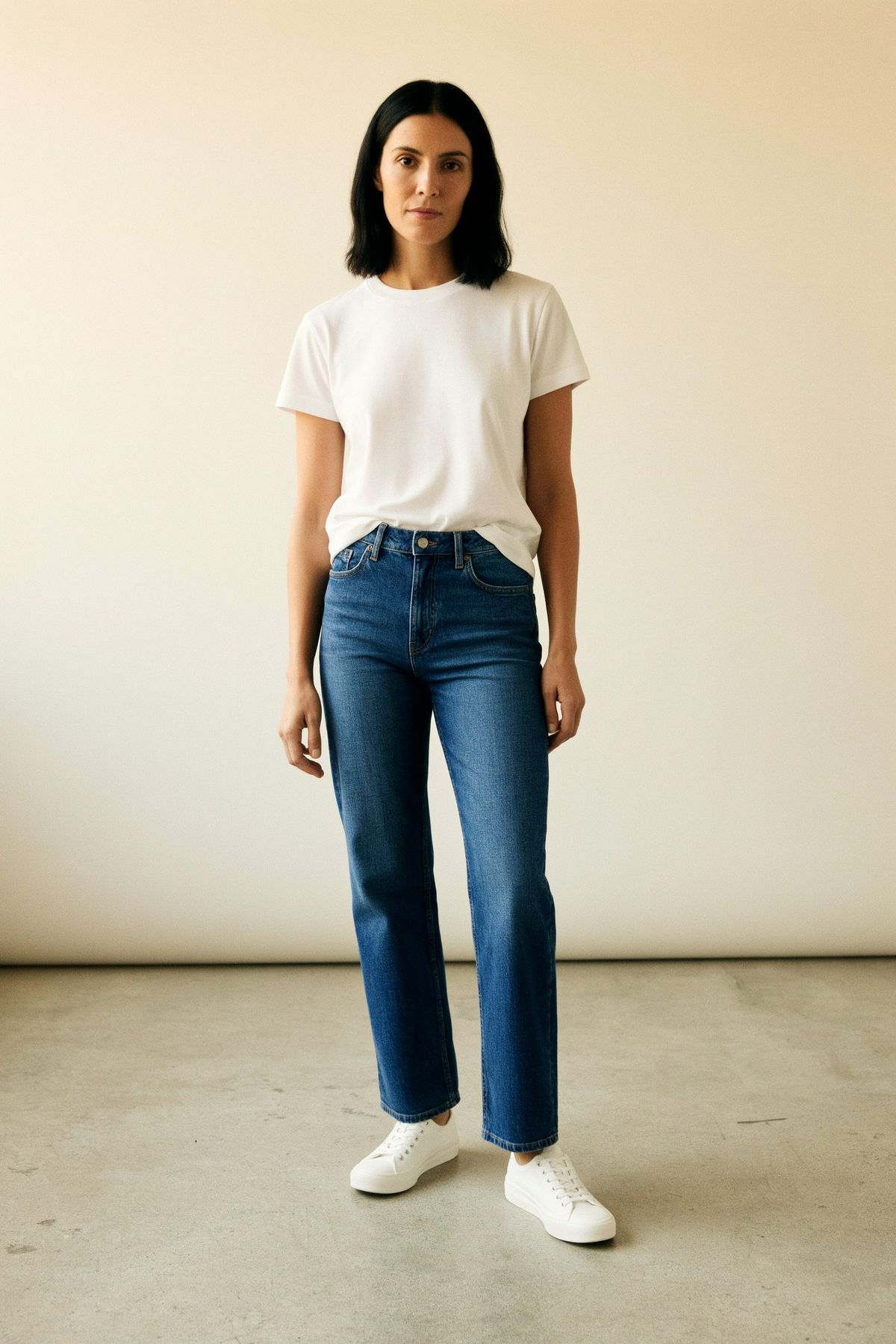
Photorealistic fashion catalog photograph of a woman in her early thirties with shoulder-length straight black hair, standing relaxed and facing the camera in a bright minimal studio with a pale concrete floor and a warm white wall, full figure from head to toe, wearing a plain white t-shirt, straight blue jeans and plain white sneakers, hands relaxed at her sides. Soft even daylight, shot on a 50mm lens at waist height.
- Image 2
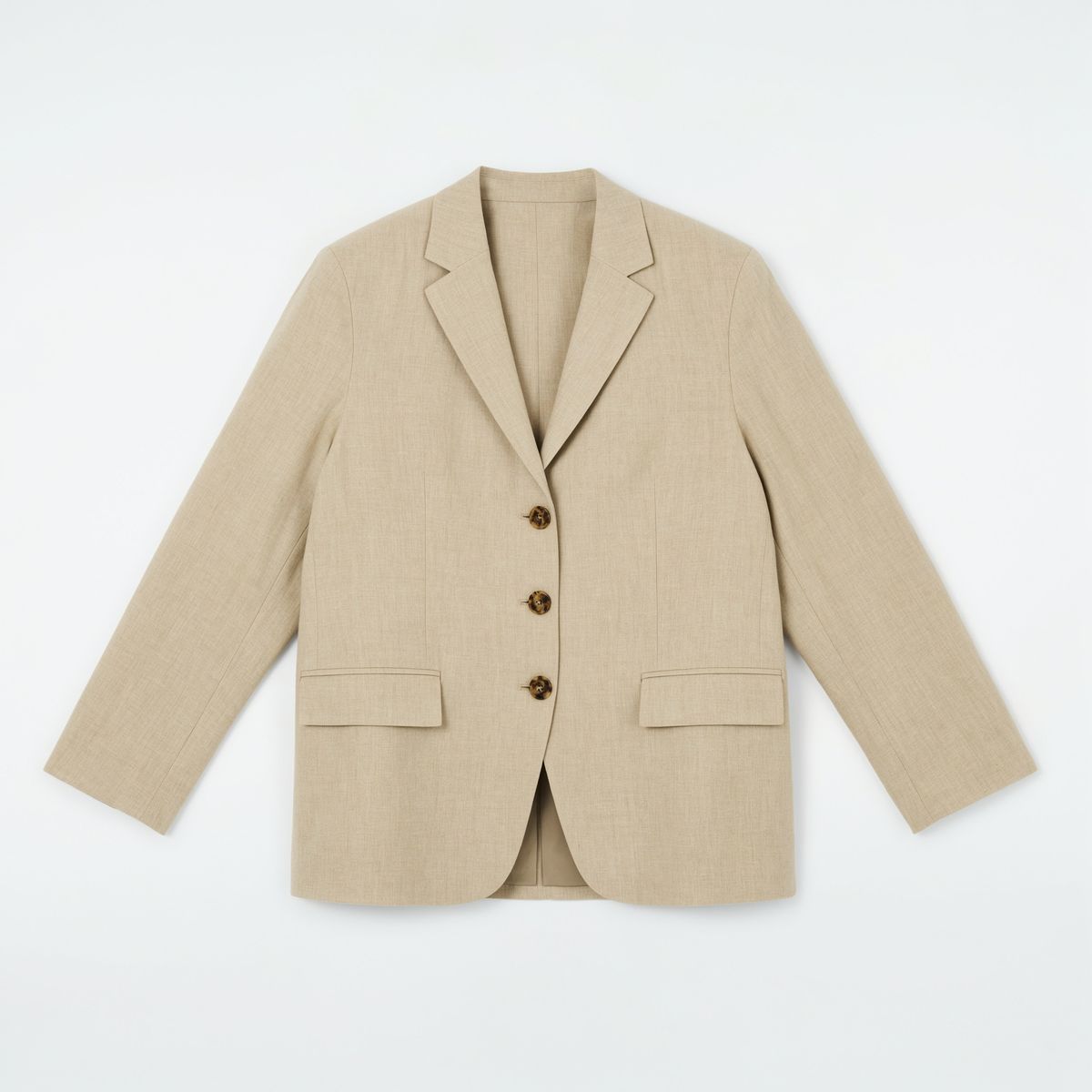
Flat lay product photograph of an oversized single-breasted blazer in oatmeal linen with two flap pockets and tortoiseshell buttons, laid out neatly on a plain white background, shot from directly above, soft even light.
- Image 3
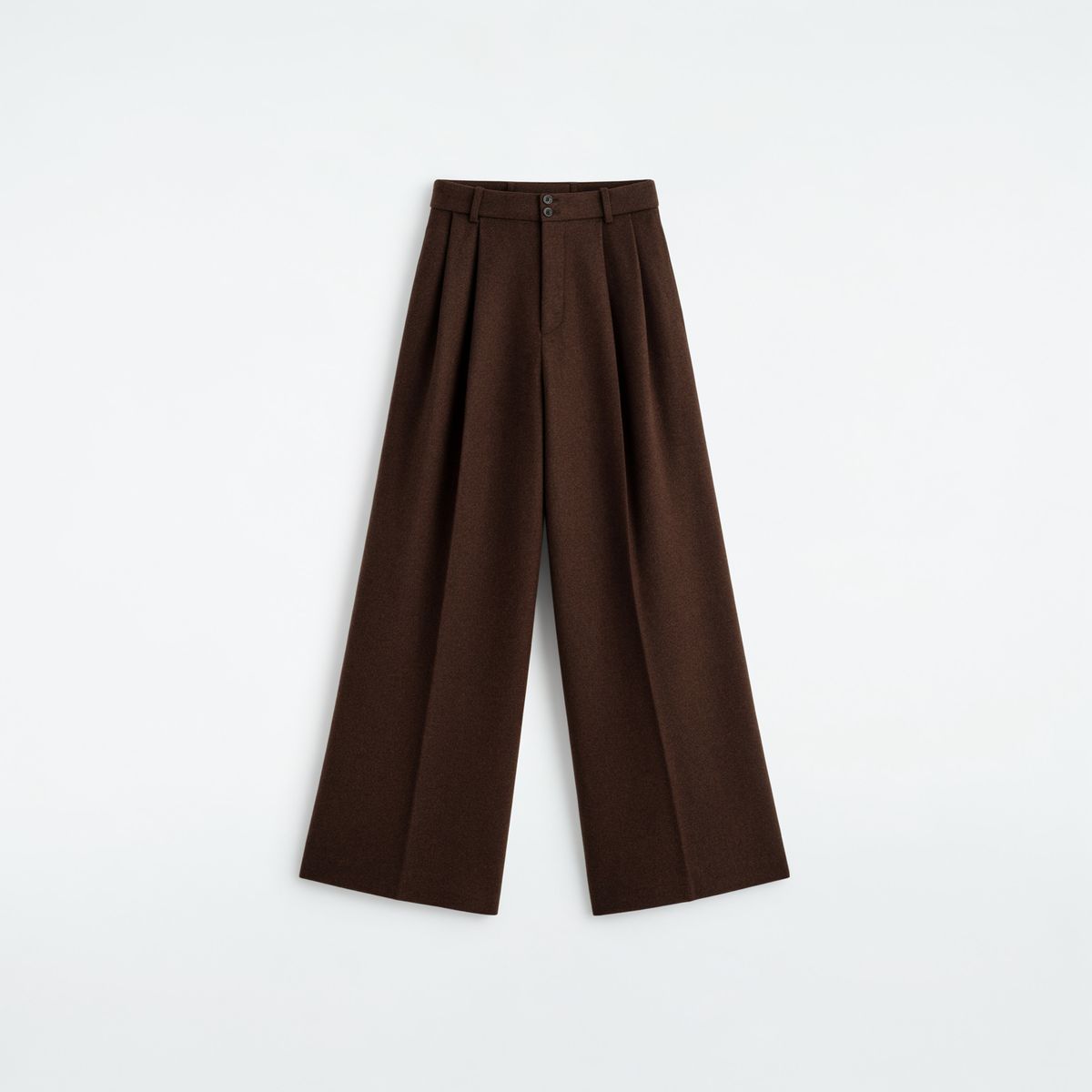
Flat lay product photograph of high-waisted wide-leg trousers in chocolate brown wool with front pleats, laid out neatly on a plain white background, shot from directly above, soft even light.
- Image 4
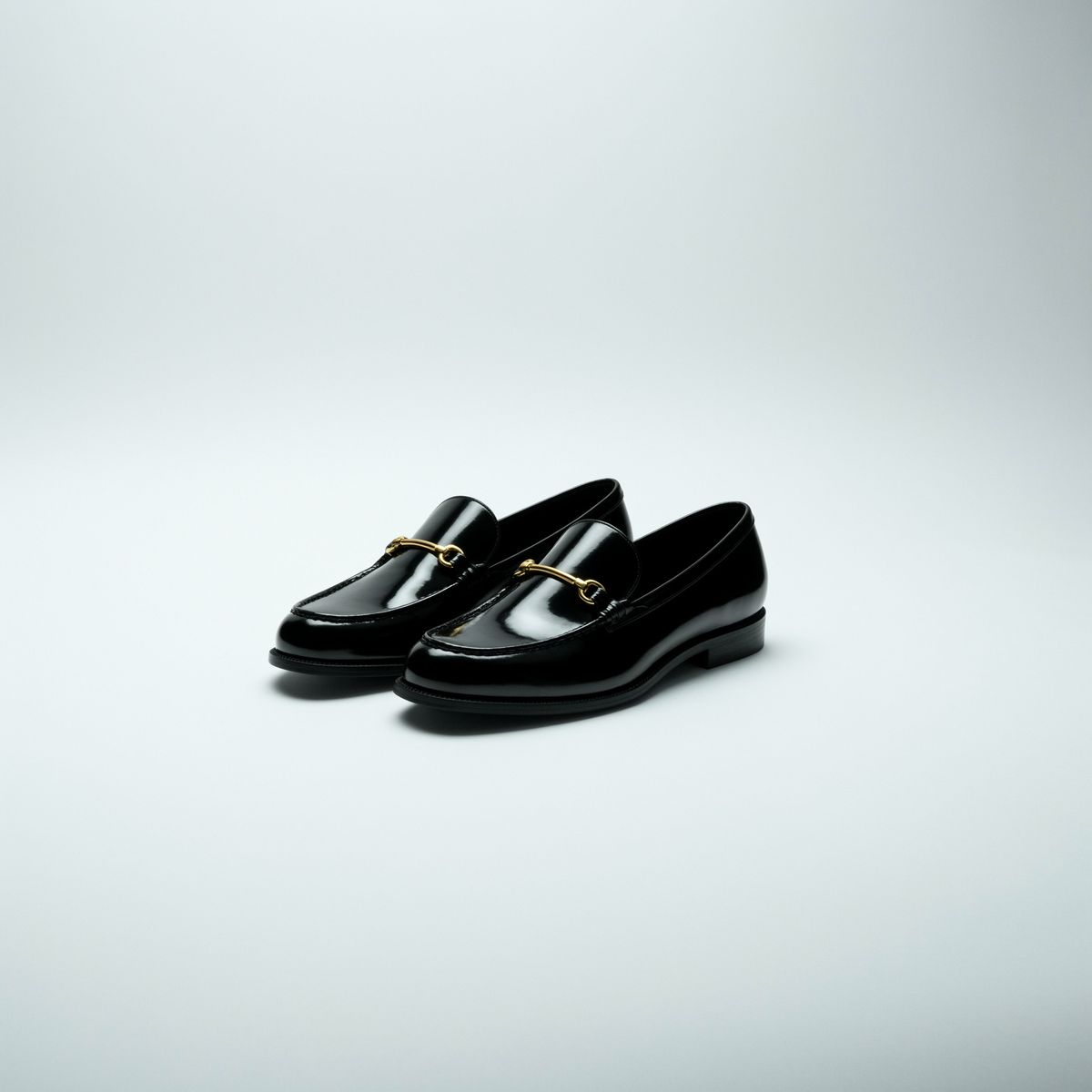
Product photograph of a pair of black patent leather loafers with a thin gold horsebit detail, side by side at a three-quarter angle on a plain white background, soft even light.


Each piece gets its own clause and its own number, and each clause says how it is worn: open over the t-shirt, in place of the jeans, in place of the sneakers. The keep clause lists the white t-shirt because it is the one garment staying, and an outfit swap left to guess might replace it along with the rest.
One attribute from each reference
A reference can contribute a single property instead of a whole object. Say which property you want from which image, and different references can supply the shape and the material of the same thing.

Replace the headboard in image 1 with the headboard shape from image 2, upholstered in the fabric from image 3. Keep the bed linen, the bedside tables, the lamps, the room, the light and the camera of image 1 unchanged.
- Image 1
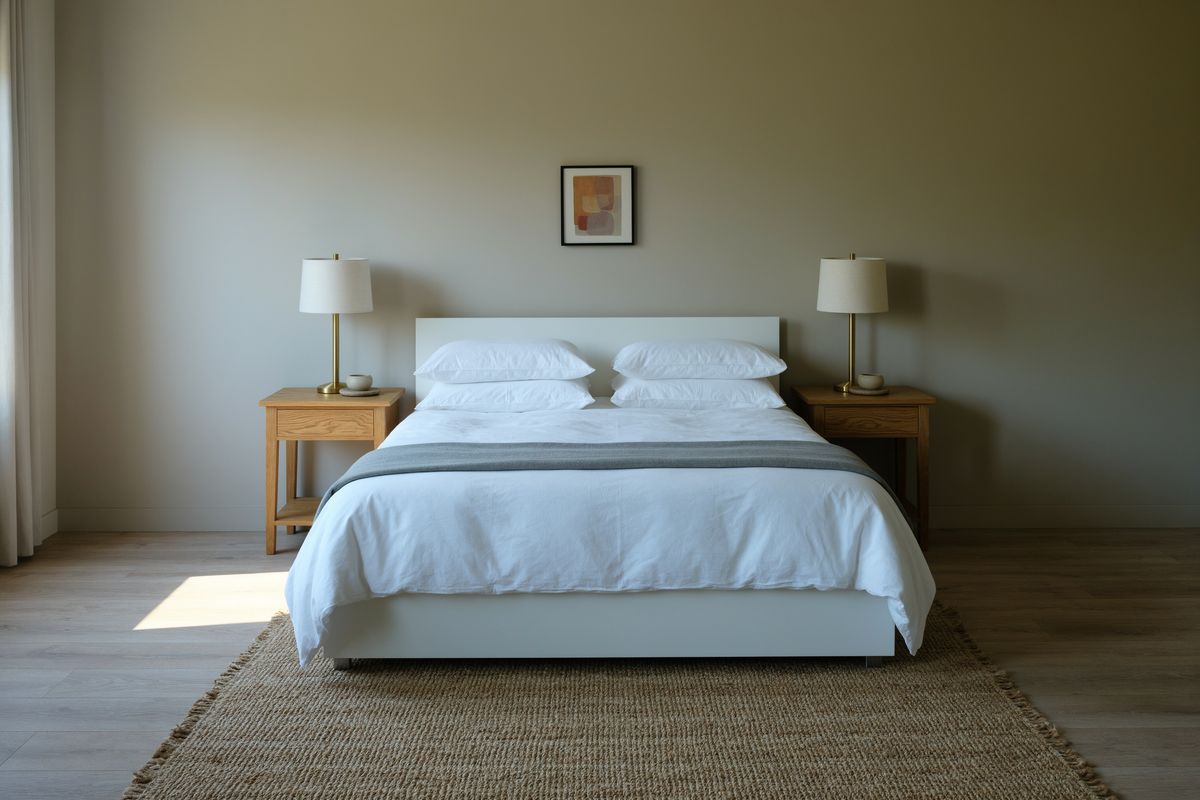
Photorealistic interior photograph of a calm hotel-style bedroom: a queen bed with crisp white linen and a plain low white headboard against a warm greige wall, two small oak bedside tables with brass lamps, a jute rug on a pale oak floor. Soft daylight from a window on the left, shot straight-on at standing height with a 28mm lens, the bed centered.
- Image 2
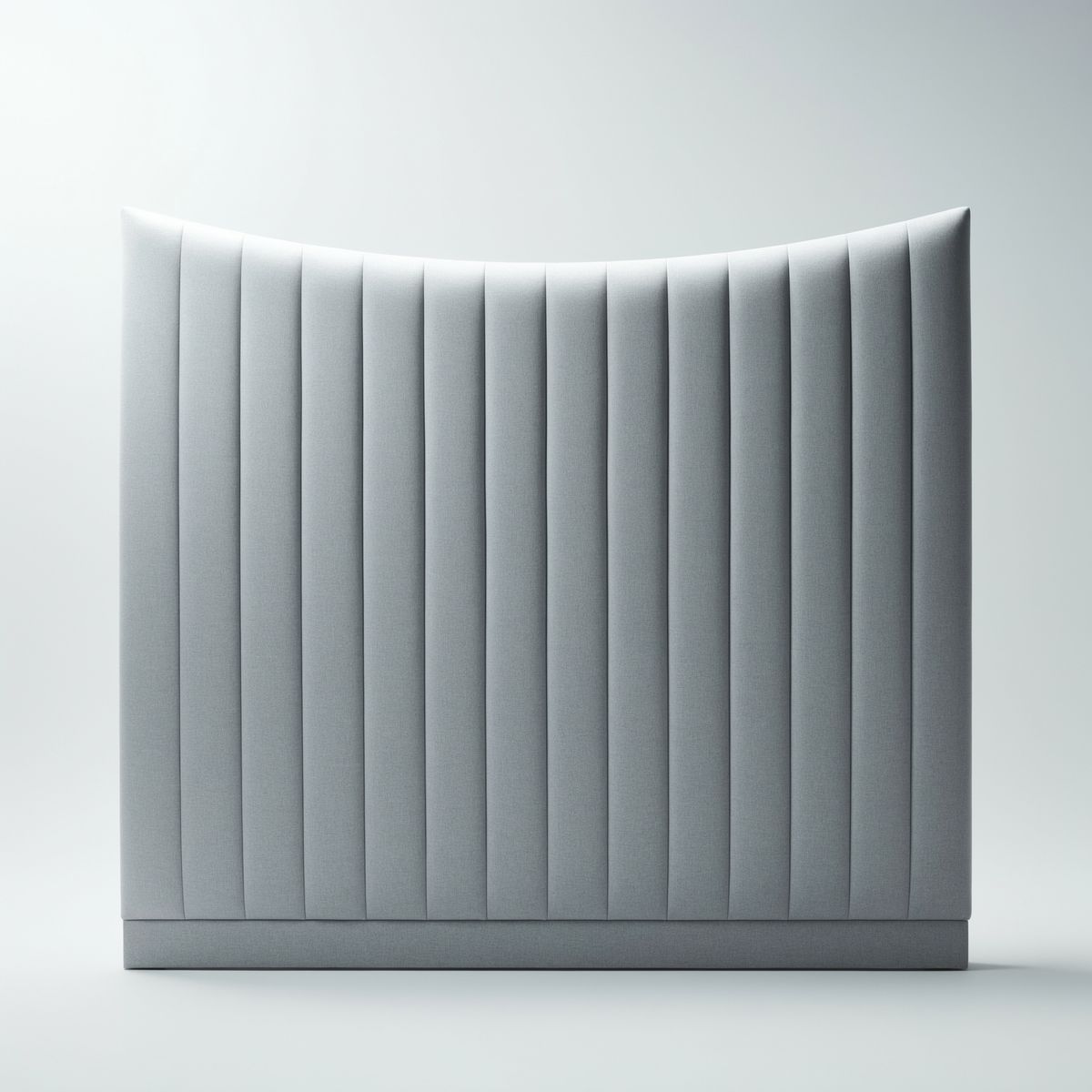
Product photograph of a tall upholstered headboard with wide vertical channel tufting and a gently curved top edge, in plain light gray fabric, front view on a plain white background, soft studio light.
- Image 3

Close-up flat swatch of forest green cotton velvet upholstery fabric with a soft sheen and a fine pile, filling the entire frame, soft even light, no other objects.


The headboard keeps the channels and the curved top from image 2 and takes its velvet from image 3, which never showed a headboard at all. One product photo then covers a catalog's fabric options: a product reference for the shape and a swatch for each upholstery.
Choosing the output size
width and height work the same with references as without them: any multiple of 32 up to 4096, with a ratio between 1:6 and 6:1. Leave both out and the model picks the canvas.

Reframe image 1 as a wide website banner: extend the stone slab and the background to the left and right. Keep the olive oil bottle, the bowl of olives, the rosemary, their shadows and the light of image 1 unchanged, with the bottle in the center.
- Image 1, 2048 × 2048
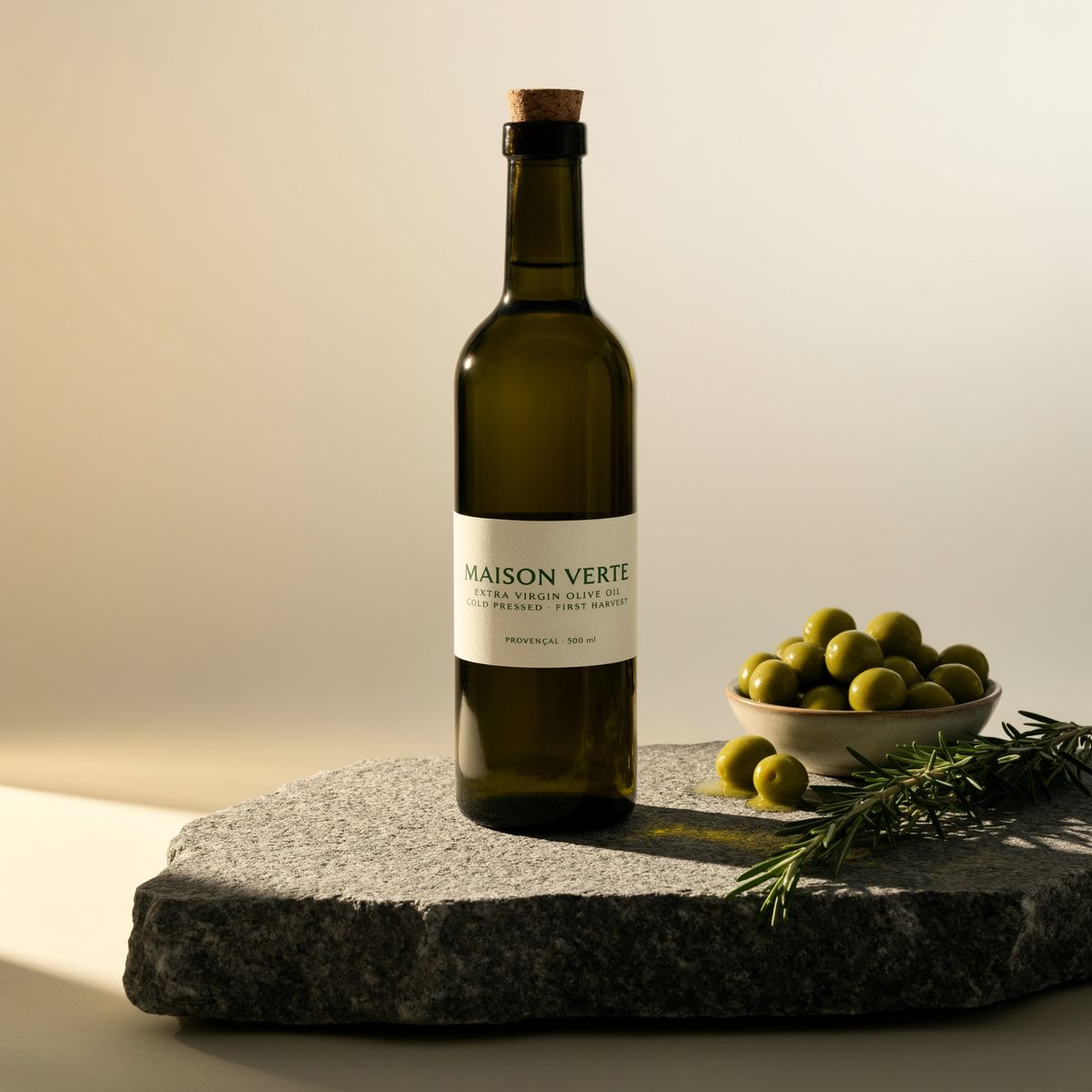
Square e-commerce product photograph of a tall dark green glass bottle of extra virgin olive oil with a cream paper label and a cork stopper, standing on a rough gray stone slab beside a small bowl of green olives and a sprig of rosemary, against a soft warm beige background. Hard late afternoon sunlight from the left casting a crisp shadow to the right, the bottle centered.

The banner came from the square packshot in one call, at twice the source's width. The prompt says how to fill the new space, and width and height decide the shape, so the same packshot can be run once per placement a campaign needs.
The bottle is smaller in the banner than in the square, because the banner is 1280 pixels tall against the square's 2048. A reframe fits the subject to the new height and builds the extra width around it, so pick a height that leaves the product the size the placement needs.
To keep the source's framing on an ordinary edit, pass its own dimensions, as every other example in this guide does. The output then matches image 1 in size, which is what a before and after comparison needs.
Ideogram 4.6 or Precise Edit
Ideogram 4.6 renders the whole frame on every edit, which is what lets it place a bike in new light or reshape a square into a banner. When an edit has to stay inside one region, with a mask or a box, and return a large source at its exact size, use Ideogram 4.6 Precise Edit.
Tips
-
Put the image to edit first. The first entry in
inputs.referenceImagesis the one that changes. -
Refer to every input by its number. "The bike from image 2" cannot be mistaken for anything in image 1.
-
Ask for the shadow and the light. One sentence about how the placed object is lit makes it belong to the scene.
-
Say what to take from each reference. Shape from one image and material from another is a single instruction.
-
List what stays in the keep clause. Name the garment or the object that must survive a swap around it.
-
Pass the source's size to keep its framing. Pass a new size to reframe it.
Edits take the same quality tiers as generation, covered in Prompting. To carry one person or character through a series of new scenes, see Character consistency.